
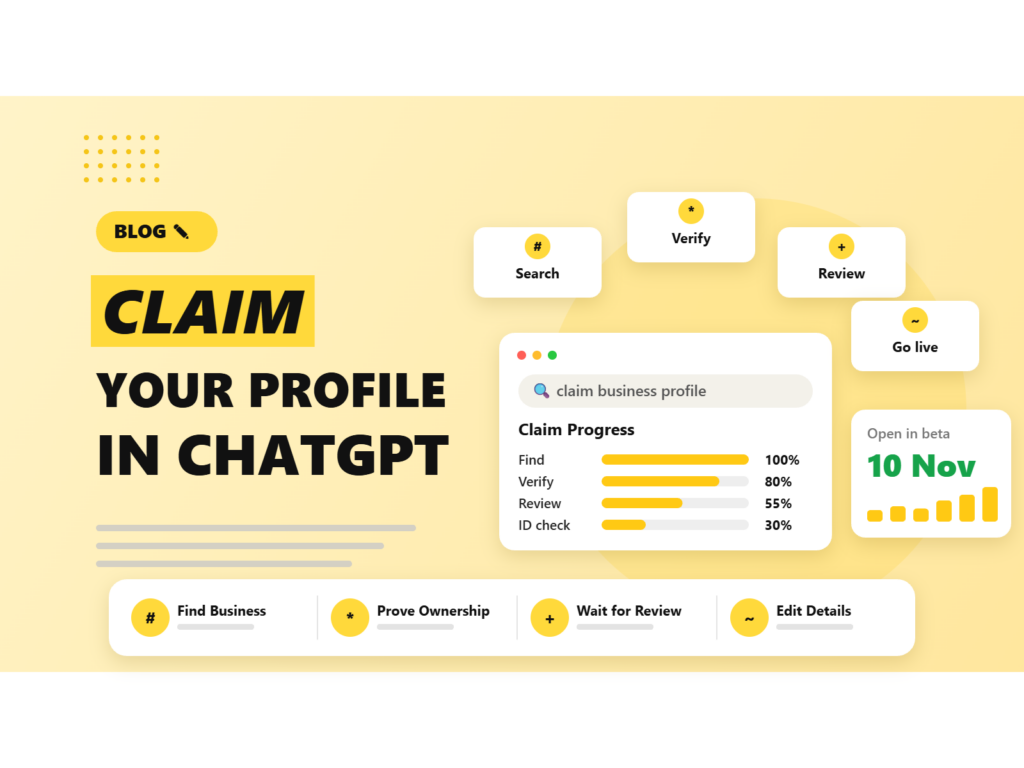
OpenAI opened ChatGPT Business Hub in beta on 10 November 2026, and the first thing most business owners want to know is simple: how do I apply? The short version is that you search for your business inside ChatGPT, prove you are allowed to manage it, wait for review, and then complete an ID check before you can edit anything. This guide walks through each stage in plain steps, shows what to prepare first and explains what can go wrong. If you want the bigger picture first, start with our overview of the ChatGPT Business Hub features.
Quick answer: To apply for ChatGPT Business Hub, sign in to ChatGPT, open Business Hub, search for your business (or create a new profile), prove you can represent it, verify by phone or DNS, wait for OpenAI’s email decision, and then pass a government ID check. Only after that can you edit details or publish. The beta started on 10 November 2026, so some businesses are placed on a waitlist. OpenAI has not stated a fee for claiming a profile.
Before you apply: what to know
Businesses in ChatGPT launched in beta on Tuesday 10 November 2026 and is rolling out gradually. OpenAI says claiming is open to eligible businesses in markets where ChatGPT is available, but eligibility depends on your industry, location and verification checks. At least one claim on launch day went onto a waitlist, so do not be surprised if your first attempt is not instant.
Three details can save you trouble later:
- The ChatGPT account you use becomes the admin owner of the listing. Forbes advises choosing this deliberately. Use an account your company controls, not the personal login of someone who may leave.
- Some businesses should skip the Hub sign-up. Existing OpenAI Enterprise customers and advertisers are told to work with their OpenAI representative. Shopify merchants can connect a store through the Hub or through Shopify’s admin.
- Claiming binds you to the Businesses in ChatGPT terms. Have someone read them before you accept.
Not sure it is worth the effort? Our post on how ChatGPT Business Hub helps your business covers the upside and the limits.
What to have ready before you start
- A ChatGPT account for the person who will own the listing.
- Proof that you are allowed to represent the business, for example your role and company email.
- The main business phone number, with someone able to answer calls and texts.
- Access to your domain’s DNS settings, or the person who manages them.
- A government-issued ID and a phone with a camera for the identity check.
- Your public and legal business name, address, website and a short description.
- Product or service details, including prices and availability, if you plan to add them.
How to apply for ChatGPT Business Hub, step by step
Step 1: Check that the Hub is available to you
Sign in to ChatGPT and look for a Business Hub option in the sidebar. Forbes notes that availability varies by country and location. If you cannot see it, the rollout has probably not reached you yet. Check again in a few days rather than creating a second account.
Step 2: Search for your business
Type your business name and look for a match. If your business already has a listing, select it. If not, choose the option to create a new profile. PPC Land describes this as selecting an existing listing or creating a new one. For online businesses, the new-profile route asks you to choose how customers interact with you, such as through a website.
Step 3: Prove you can represent the business
OpenAI requires you to show you are authorised to represent the business before the profile goes live. OpenAI’s VP of Monetization, Benji Shomair, said there are multiple verification methods used for different types of business in different markets. That means your screens may differ from someone else’s.
Step 4: Verify by phone or by DNS
Early reviewers report two common routes. The first is a call or text to your main business number. The second is a DNS record, where ChatGPT gives you a TXT record to add to your domain. Search Engine Journal adds a practical tip for the phone route: make sure the line is reachable during business hours, because an auto-responder can block the verification call. If you choose DNS, our guide on how to submit your website to ChatGPT Business Hub shows the record setup in detail.
Step 5: Wait for the review
After you submit, the claim moves through statuses such as “Claim received” and “Review in progress”, and OpenAI emails the decision. You can withdraw a claim while it is under review. OpenAI has not published how long review takes, so plan for it to take longer than a few minutes.
Step 6: Complete the government ID check
PPC Land reports that editing business information or publishing an agent requires government-ID verification. Search Engine Journal says the check runs through Persona, using a QR code or secure link on your phone. You do not need to download an app, but the camera must be allowed. Keep your ID in hand and use good lighting.
Step 7: Fill in your business details
Once verified, update the facts ChatGPT may use: business name, address, phone, email, category, description, and delivery and return policies. Write the description in plain language, the way a customer would describe you. Preview how it looks before you save. Retailers can add a product feed with pricing and availability, and Shopify stores can connect through Shopify Catalog.
Step 8: Invite your team
Use the Invite option on the business overview. Each person needs their own ChatGPT account. If the profile was claimed through a ChatGPT workspace, invitees may need to be members of that workspace.
Step 9: Look at agents and ads, if you are eligible
Business Agents are limited for now to eligible ecommerce and online service businesses in the US. If that is you, you can create, test and launch one once you are verified. Sponsoring an agent through ChatGPT Ads is optional.
Common problems and how to fix them
- The Hub is not in my sidebar. The rollout is gradual and varies by country. Wait and retry.
- My business is not found. Use the create option, and make sure your name and website are spelled exactly as they appear on your site.
- I was put on a waitlist. Physical-location profiles may be waitlisted. Online businesses using the website route have had a smoother path in early reports.
- The verification call never came. Check the number, turn off auto-responders and answer during business hours.
- DNS verification fails. DNS changes can take time to spread. Check the record type, name and value, then try again later.
- I have several brands or locations. Search Engine Journal reports that each brand has to be managed separately, and claiming a main brand does not cover its locations.
- I changed my brand name. Explain the link between the old and new names on your site and in your description, and keep the legal name where the form asks for it.
Your first-week checklist after approval
- Check every field for accuracy and remove anything out of date.
- Match your name, address and phone number with your website and Google Business Profile.
- Add products or connect your store.
- Ask ChatGPT a few customer-style questions and note how it describes you.
- Look at Insights after a few days, once there is enough data to appear.
Remember that claiming a profile does not guarantee better placement. ChatGPT still makes its own recommendations, so your website and reputation still matter.
How Nowoka can help
We can prepare your profile details, structured website content and citation tracking so verification goes smoothly and ChatGPT has accurate information to work with. See our GEO services, LLM SEO services and local SEO services.
Sources: PPC Land, Forbes, Search Engine Journal, TechCrunch. The feature is in beta, so steps and screens may change.
Frequently asked questions
How long does ChatGPT Business Hub approval take?
OpenAI has not published a timeframe. Early reports show a claim moving from “Claim received” to “Review in progress”, with the decision sent by email. Some launch-day claims were waitlisted.
What if my business is not listed in ChatGPT Business Hub?
Use the create-new-profile option. For online businesses, choose the website route, then verify your domain and identity.
Do I have to pay to claim my business profile?
OpenAI has not stated a fee for claiming a profile or publishing an agent. A Business Agent can be sponsored through ChatGPT Ads, which is optional.
Can my team help manage the profile?
Yes. Use the Invite option on the business overview. Each person needs their own ChatGPT account, and workspace-claimed profiles may need invitees to be workspace members.
Can I claim several locations or brands?
Each brand is managed separately, and claiming a main brand does not extend to its locations. If your locations were claimed through a managed arrangement, check with your OpenAI contact.
Our team can prepare your profile details, website and content so verification goes smoothly and ChatGPT has accurate information to work with.

Riya Bhardwaj
Leading content and growth initiatives with a focus on search visibility, audience engagement, and measurable business outcomes. Specialised in SEO, Generative Engine Optimization (GEO), AI search optimisation, and performance-driven content marketing. Passionate about transforming market insights into scalable content strategies that strengthen brand authority and drive sustainable digital growth.